The Artist section of your Dashboard is the home for your key artist information on EmuBands. Keeping it up to date can help your releases reach the right artist profiles on streaming platforms, while giving you one convenient place to keep your artist details and assets organised.
You can add your Spotify, Apple Music and SoundCloud artist IDs, social media details and, if you’re a Premium user, artist photos and bios. Some of this information helps us correctly map your music to your existing artist profiles, while other details are kept within EmuBands for easy reference.
In this guide, we’ll explain what each section of your Artist Section is for, what information is shared with streaming platforms, and how to make the most of it.
Adding your Spotify, Apple Music and SoundCloud artist IDs
If you already have artist profiles on Spotify, Apple Music or SoundCloud, we recommend adding the relevant artist IDs to your Artist Section before distributing a new release.
Your artist IDs tell us exactly which profiles belong to you, helping Spotify, Apple Music and SoundCloud deliver your release to the correct artist profile and reducing the risk of your music appearing on another artist’s profile by mistake. A quick check now can help make sure your release lands in the right place.
Spotify
Your Spotify artist ID is the 22-character string appearing after /artist/ in your Spotify artist profile URL.
For example: open.spotify.com/artist/XXXXXXXXXXXXXXXXXXXXXX
In this example, XXXXXXXXXXXXXXXXXXXXXX is the artist ID you should enter.

Tip: To get the URL, follow these steps on your artist profile on Spotify:
Tap the 3 dots beside your name, click ‘Share’, then ‘Copy link to artist’. Paste this link into a text document or your browser, and copy the string as per the above instructions.
Apple Music
Your Apple Music artist ID is the 10-digit number found in your Apple Music artist profile URL. It appears after the artist name or /artist/.
For example: music.apple.com/gb/artist/artist-name/1234567890
In this example, 1234567890 is the artist ID you should enter.
Tip: Where possible, add your Spotify and Apple Music artist IDs before submitting your release for distribution. This gives us the best chance of delivering your music to the correct existing profiles.

SoundCloud
Your SoundCloud artist ID is your full SoundCloud artist profile URL. It should be entered in the following format: https://soundcloud.com/artistname
So, https://soundcloud.com/artistname is the artist ID you should enter.
Please only provide a SoundCloud artist ID if your SoundCloud profile already exists.
Tip: Where possible, add your SoundCloud artist ID before submitting your release for distribution. This gives us the best chance of delivering your music to the correct existing profile.

What are Premium artist slots?
If you’re an EmuBands Premium member, your membership includes a set number of artist slots.
The option to activate or deactivate an artist on the Artist Section allows Premium members to choose which artists are currently using their available slots.
If you’re not a Premium member, you don’t need to activate or deactivate artists.
Can I add an artist photo and biography?
EmuBands Premium members can add an artist photo and biography to their Artist Section.
These are stored on your EmuBands Artist Section, giving you a convenient place to keep your artist information and assets together.
Can I add an artist photo and biography?
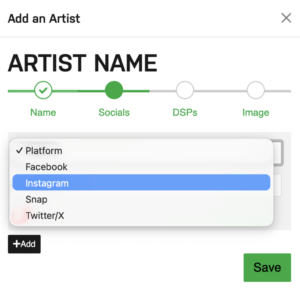
Yes. Social media details can be added to your Artist Section on all EmuBands membership tiers.
When adding your social media details, please enter your username rather than the full profile URL.
For example, for: https://www.instagram.com/emubands
Enter: emubands
Can I edit my Artist Section details?
Once you’ve added artist details to your Artist Section, you can’t edit them directly yourself. If you need to make a change, please get in touch with your EmuBands support contact and we’ll be happy to help.
If you’ve created a brand-new artist profile that isn’t yet associated with any releases, you may also have the option to delete the artist profile and create it again with the correct information.
Why should I complete my Artist Section?
Keeping your Artist Section up to date gives you one convenient place for your key artist information and assets.
Most importantly, adding the correct Spotify and Apple Music artist IDs before distributing your music can help us identify your existing artist profiles and reduce the risk of your release appearing on the wrong artist profile.
For anything that isn’t delivered to DSPs, such as artist photos and biographies, your Artist Section can still act as a useful hub for keeping your artist information organised.
Update your EmuBands Artist Section here.
Ready to release your music?
Whether you’re preparing your first release or building on an existing catalogue, EmuBands gives independent artists the tools and support to get their music out into the world.
Sign up to EmuBands to distribute your music to Spotify, Apple Music and other leading streaming and download platforms, while keeping control of your music and royalties.
Sign up to EmuBands and start releasing your music.